← For businesses

Wavind for businesses · a guided look

Their next session. Your next booking.

From “I’d love to try that” to knowing who’s coming. See how your customers book, and how you keep the day running.

No sign-up. No download. Take a look at your own pace.

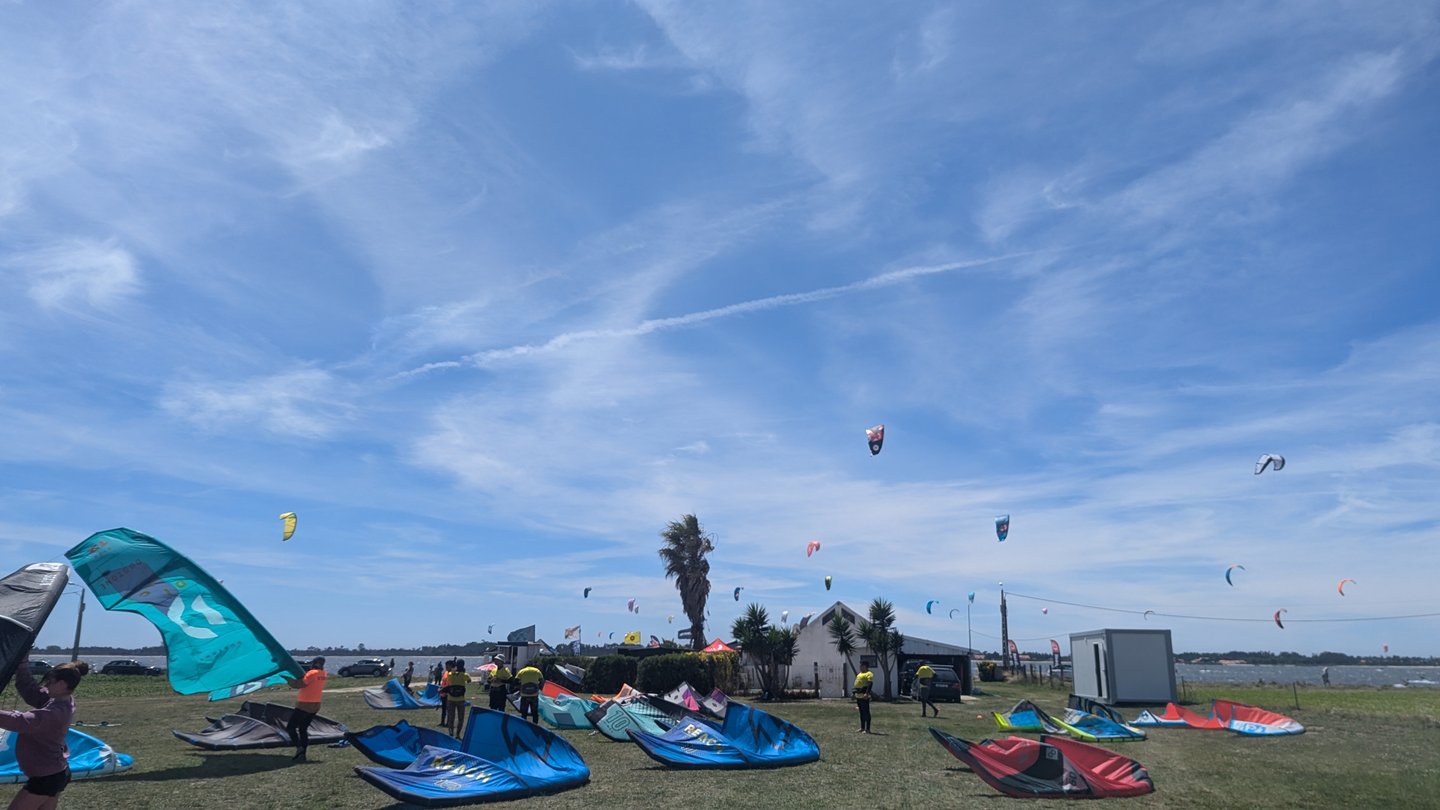
Kites and wings laid out on the grass of a busy launch, more kites in the sky
A fictional school, with real Wavind screens.

Choose a journey. Follow it from the start.

Two separate walkthroughs: how a rider books a lesson, and how a business prepares and manages its bookings. Switch roles whenever you like.

Booking as a rider

You are the rider. Choose a lesson, pick a time, book your places and find your details again before heading out.

Step 1 of 5 · The rider’s side

A page worth sharing

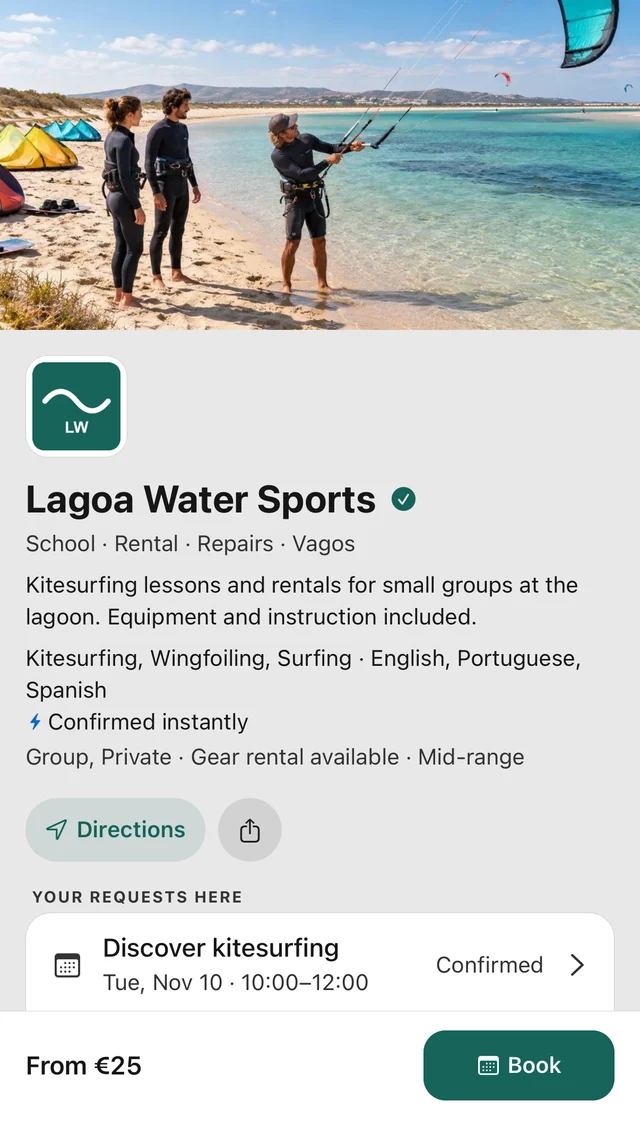
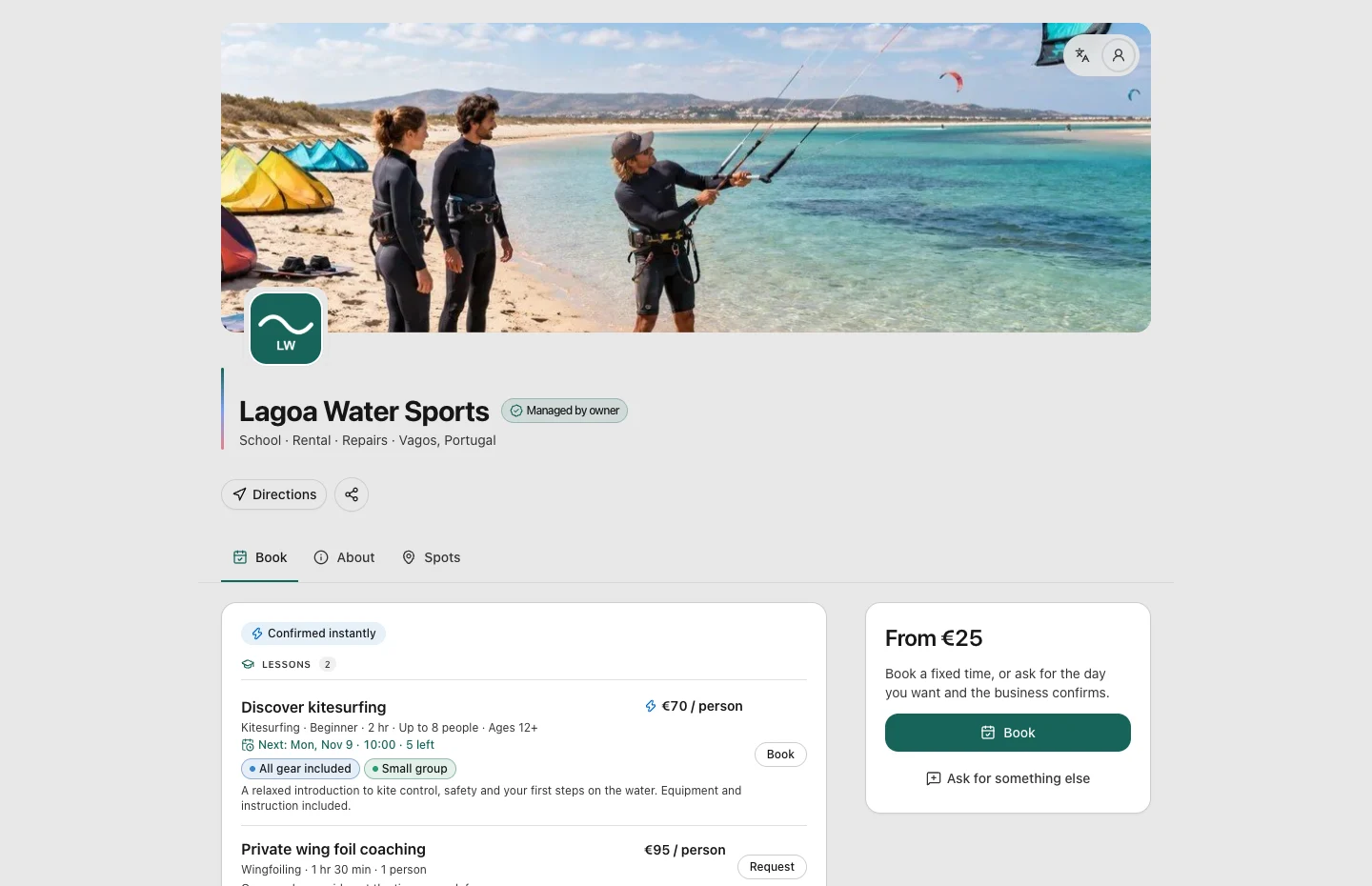
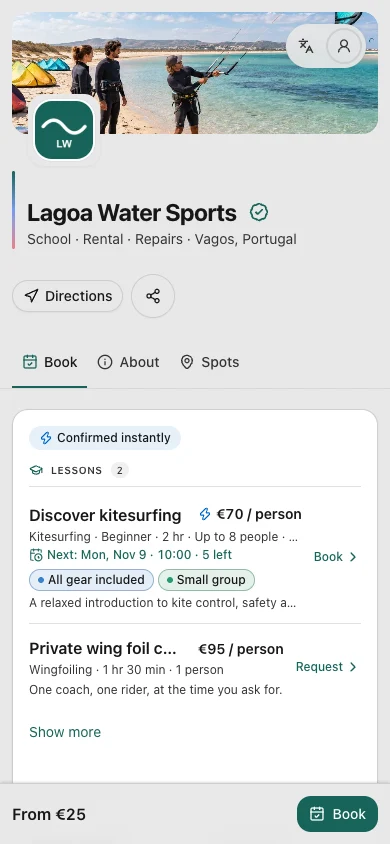
You open the school’s booking page from its website, a message or social profile. You can compare services, prices and booking options before choosing a lesson.

On this screen

Open Discover kitesurfing from the school’s services. The school sets its prices and decides which services can be booked instantly.
What happens next

You know what the school offers and which service you want to book.
Step 2 of 5 · The rider’s side

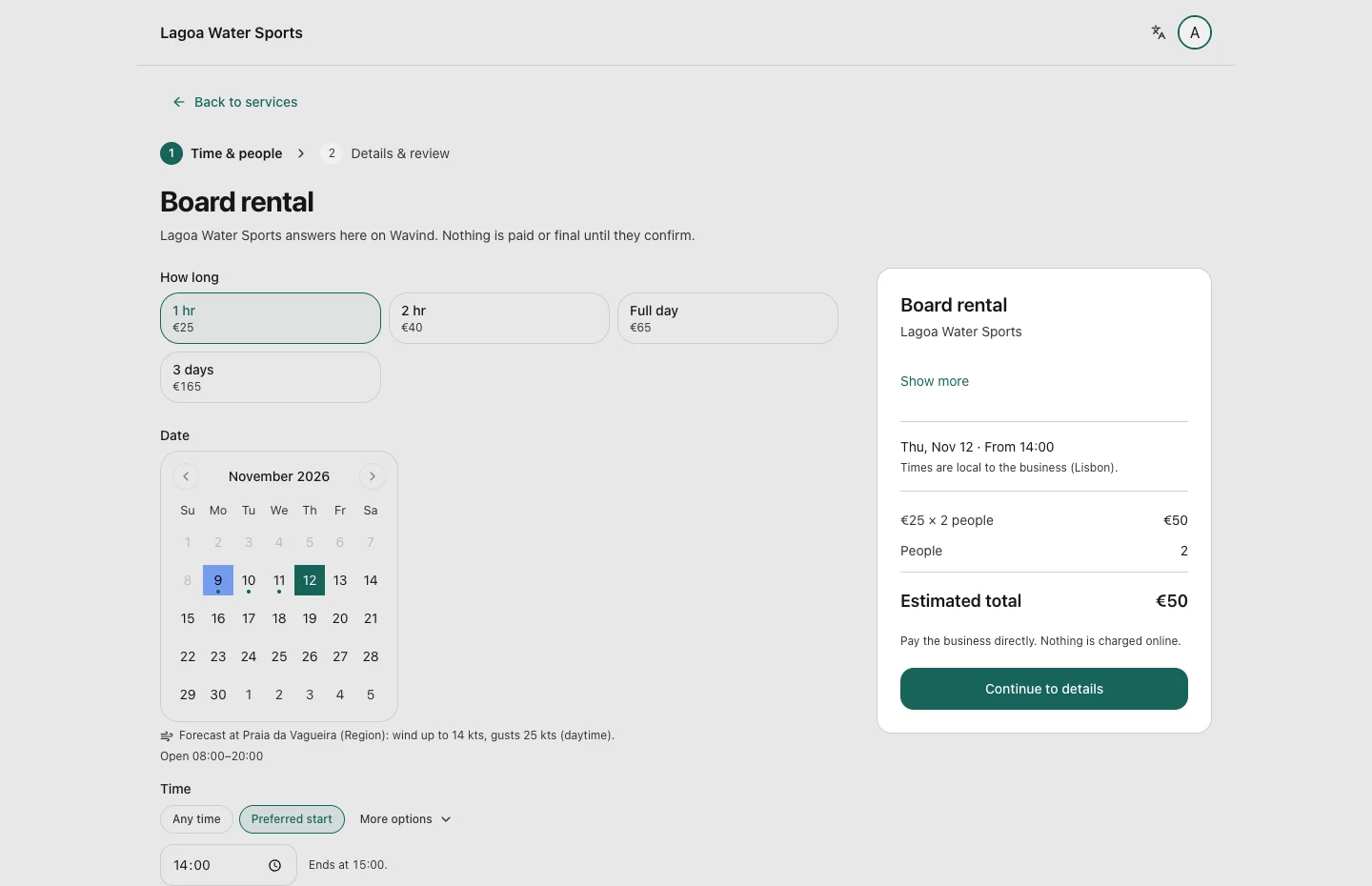
Find a time that fits

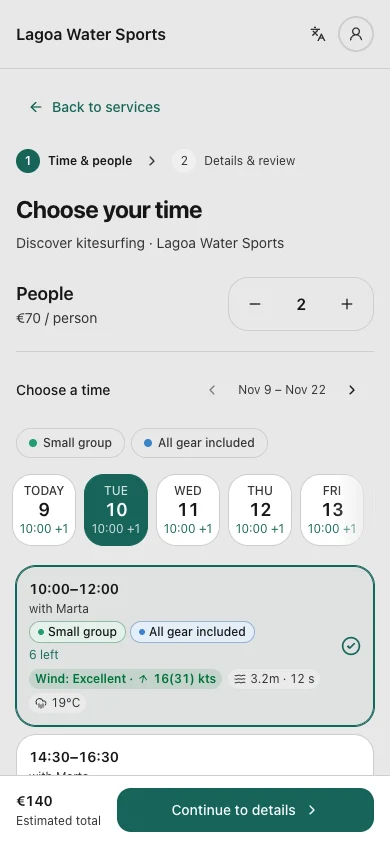
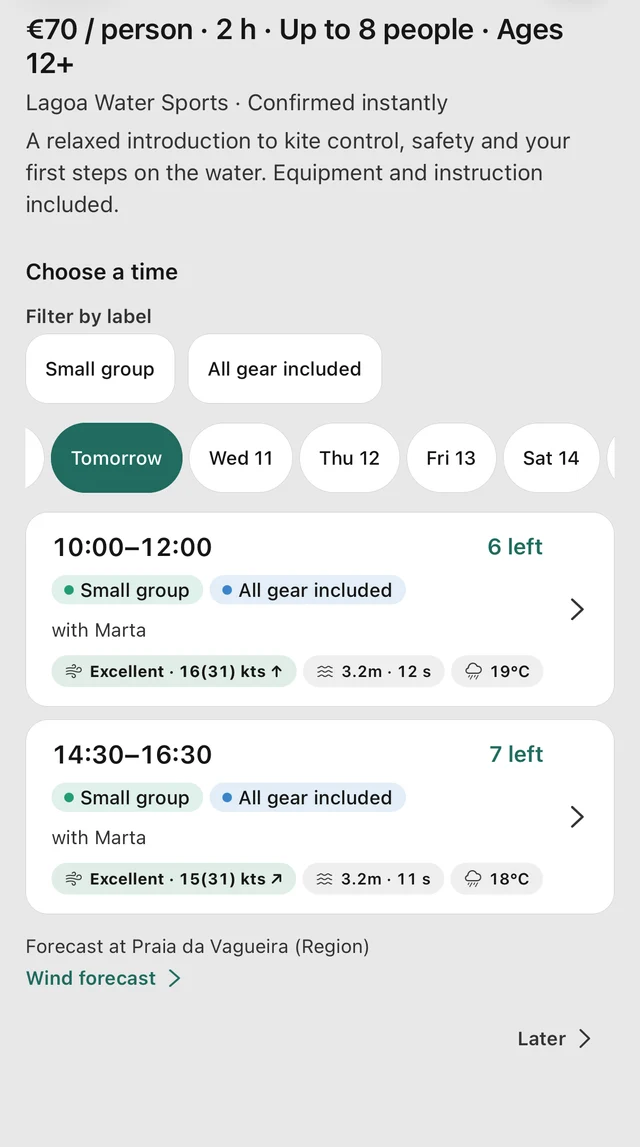
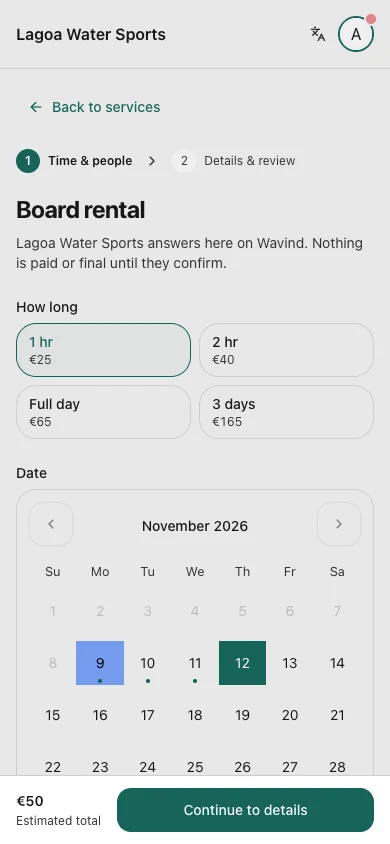
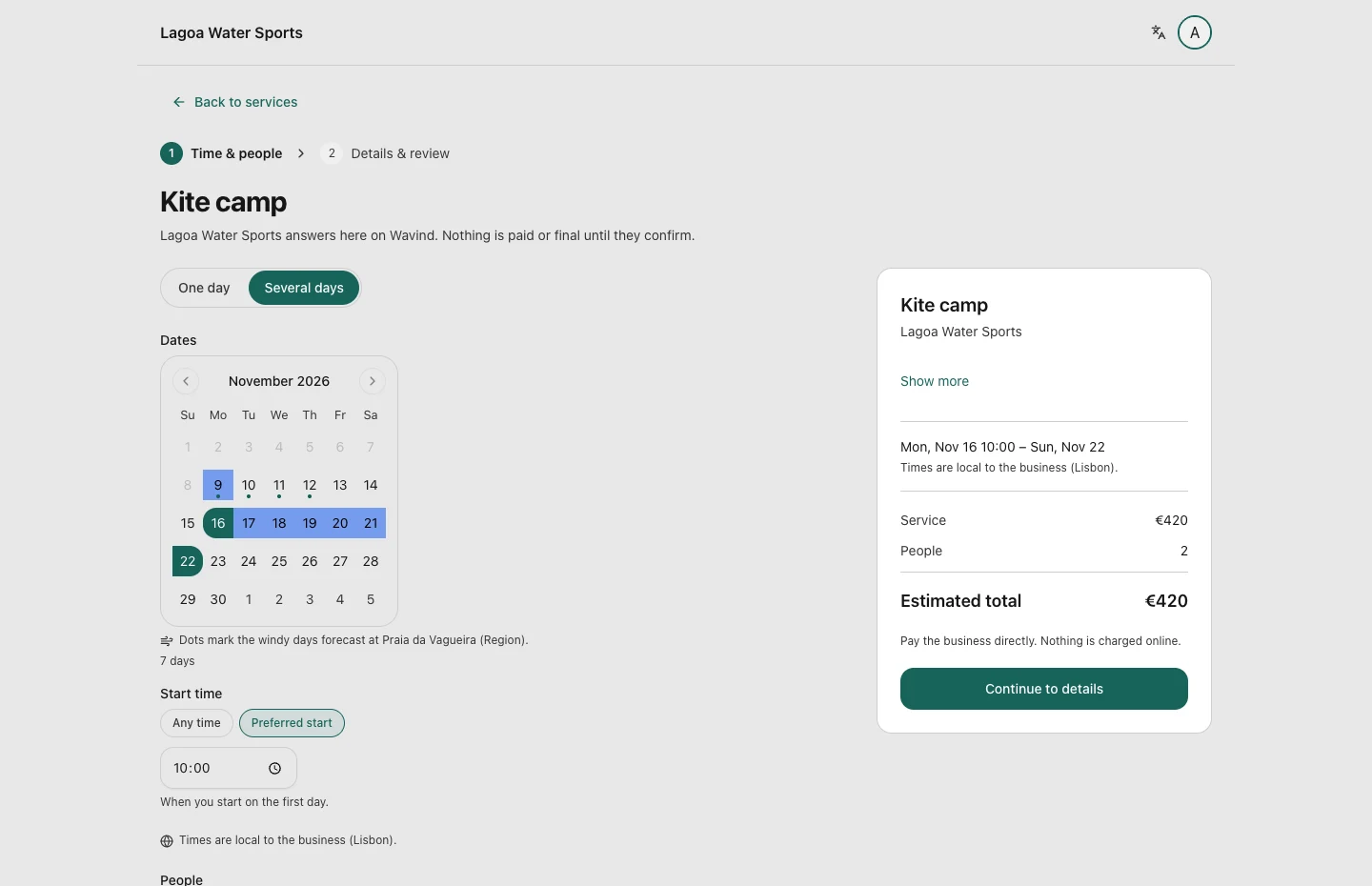
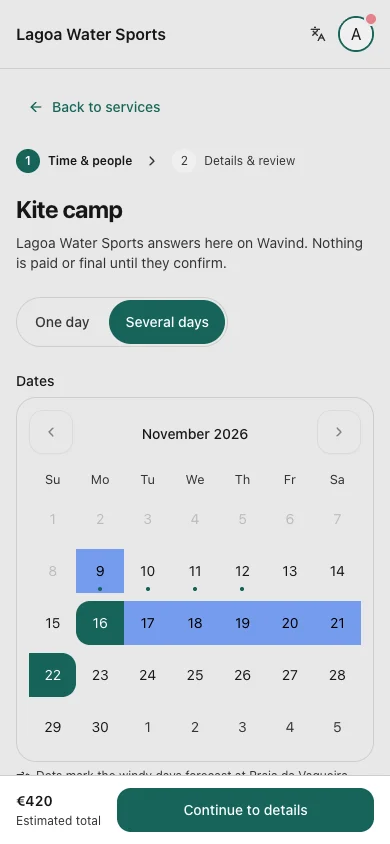
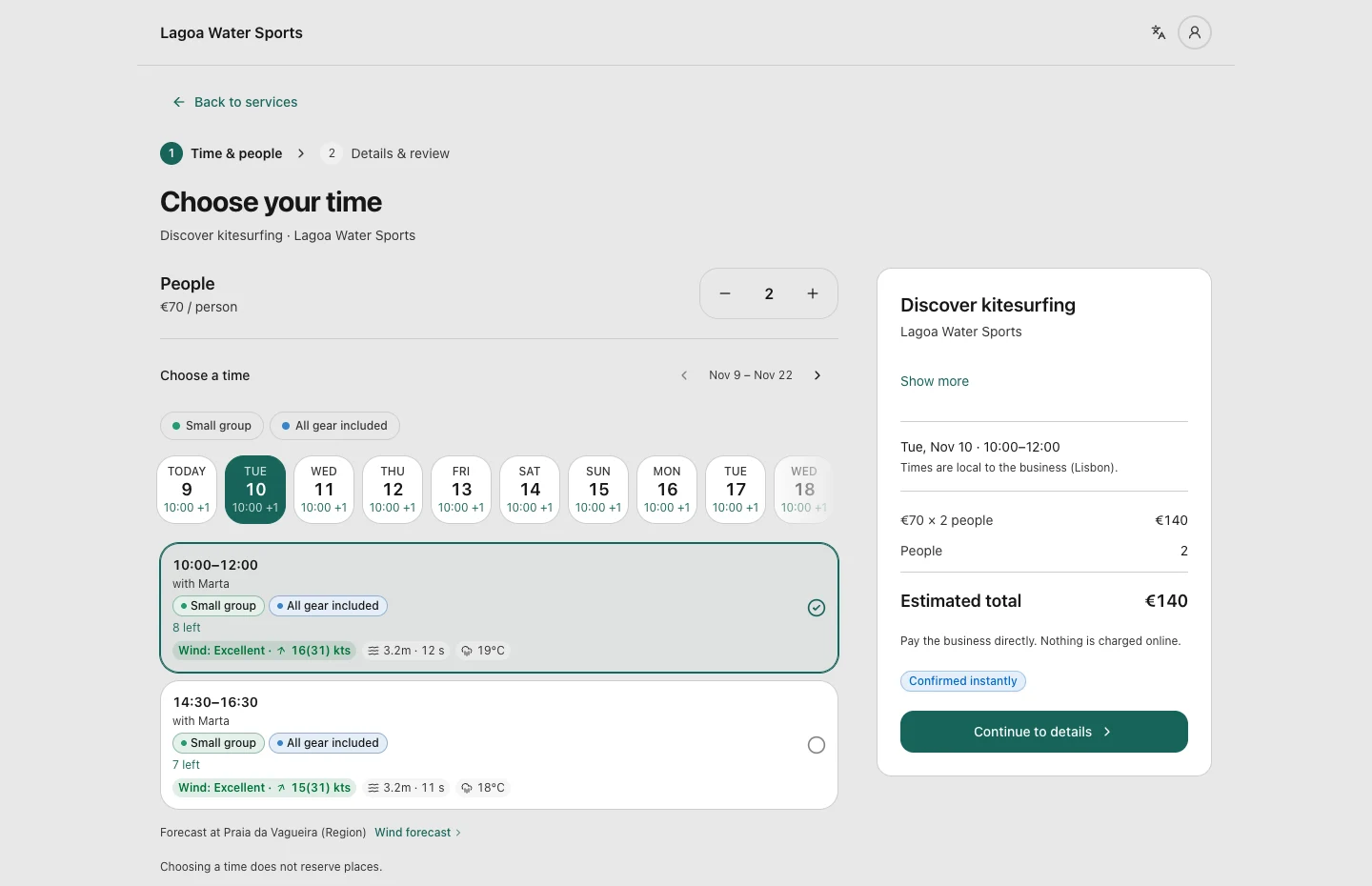
On the website, choose time and people on a dedicated page, then continue to details. Available places and the forecast help you choose; selecting a time alone does not hold places.

On this screen

Choose a day and an available time. Compare places left, the instructor and the conditions before continuing.

What happens next

You choose a session with enough places before entering the booking details.

Step 3 of 5 · The rider’s side

Make it their session

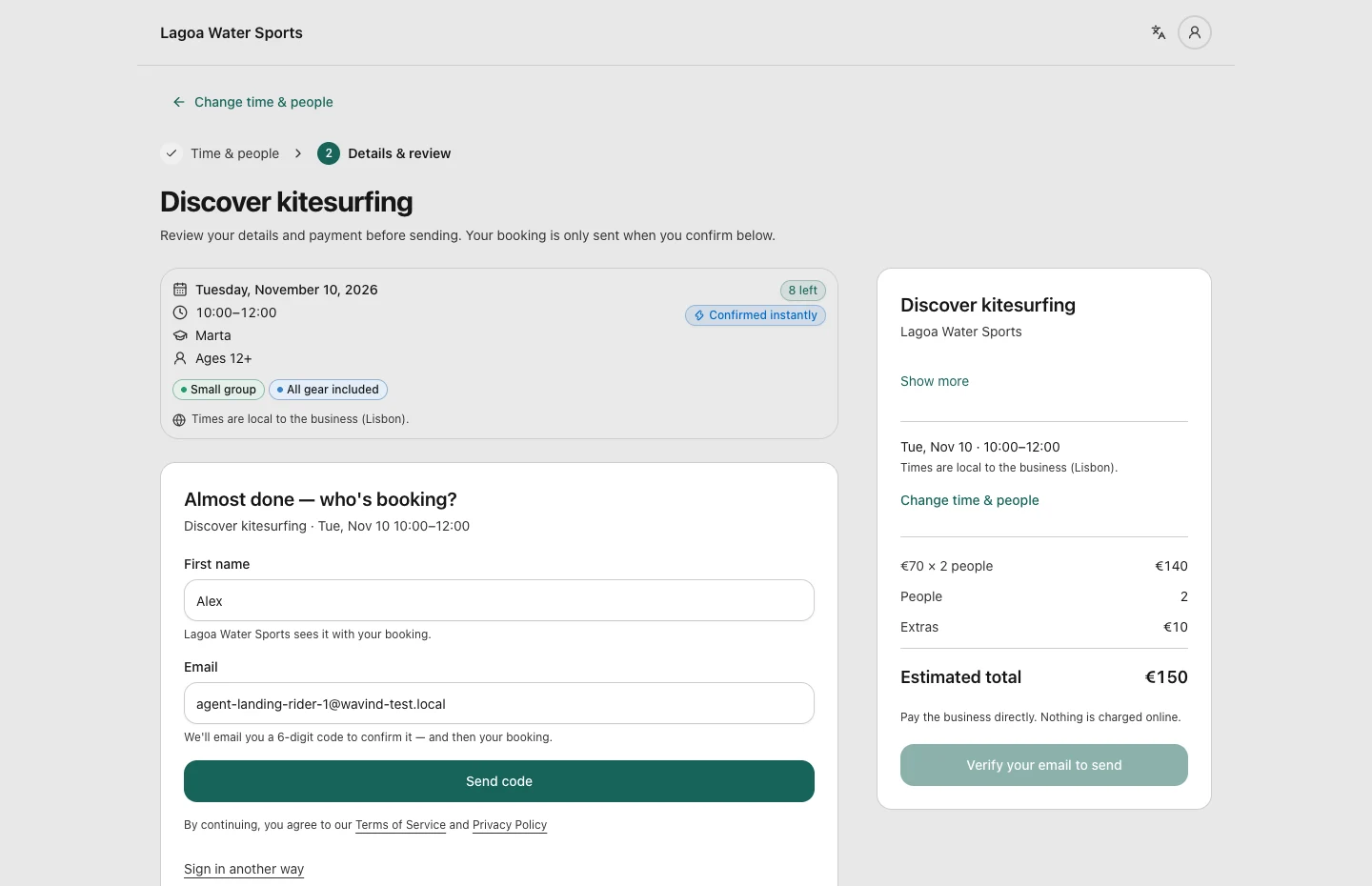
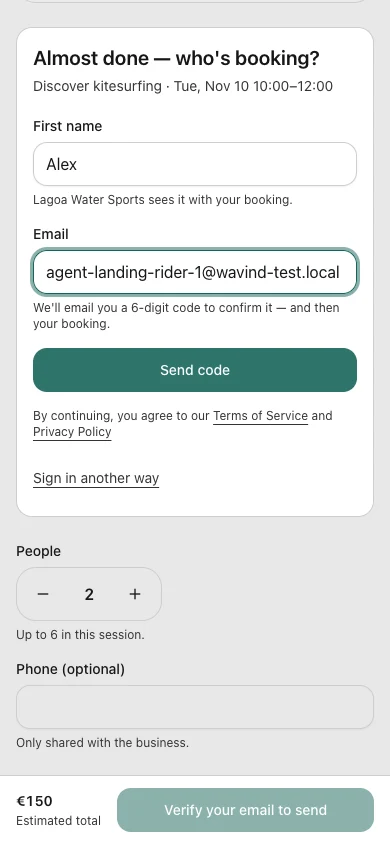
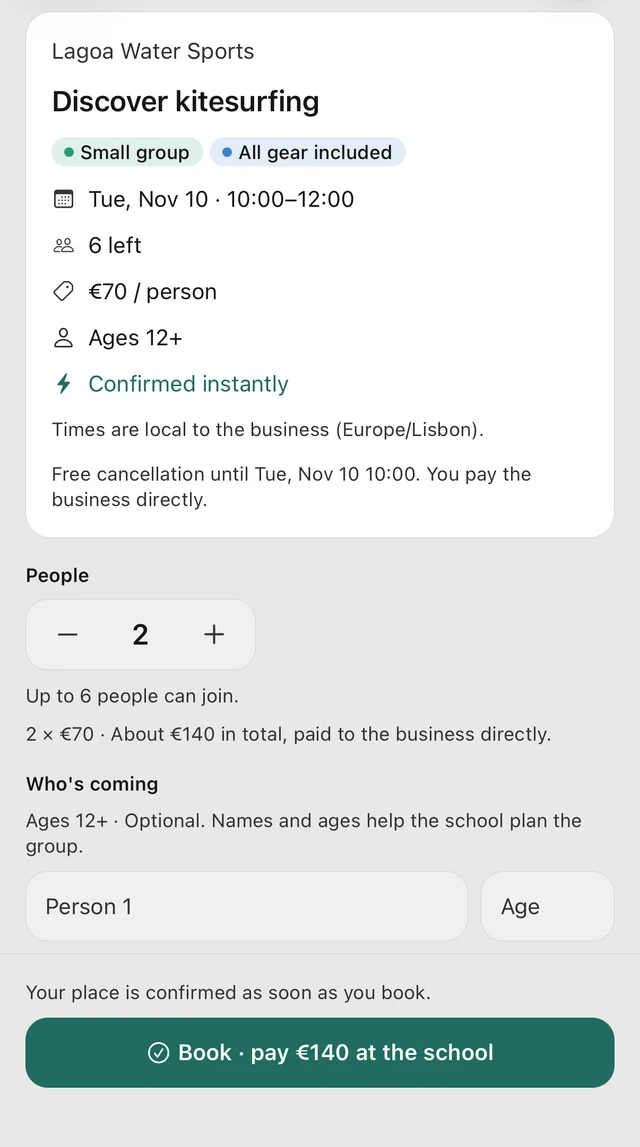
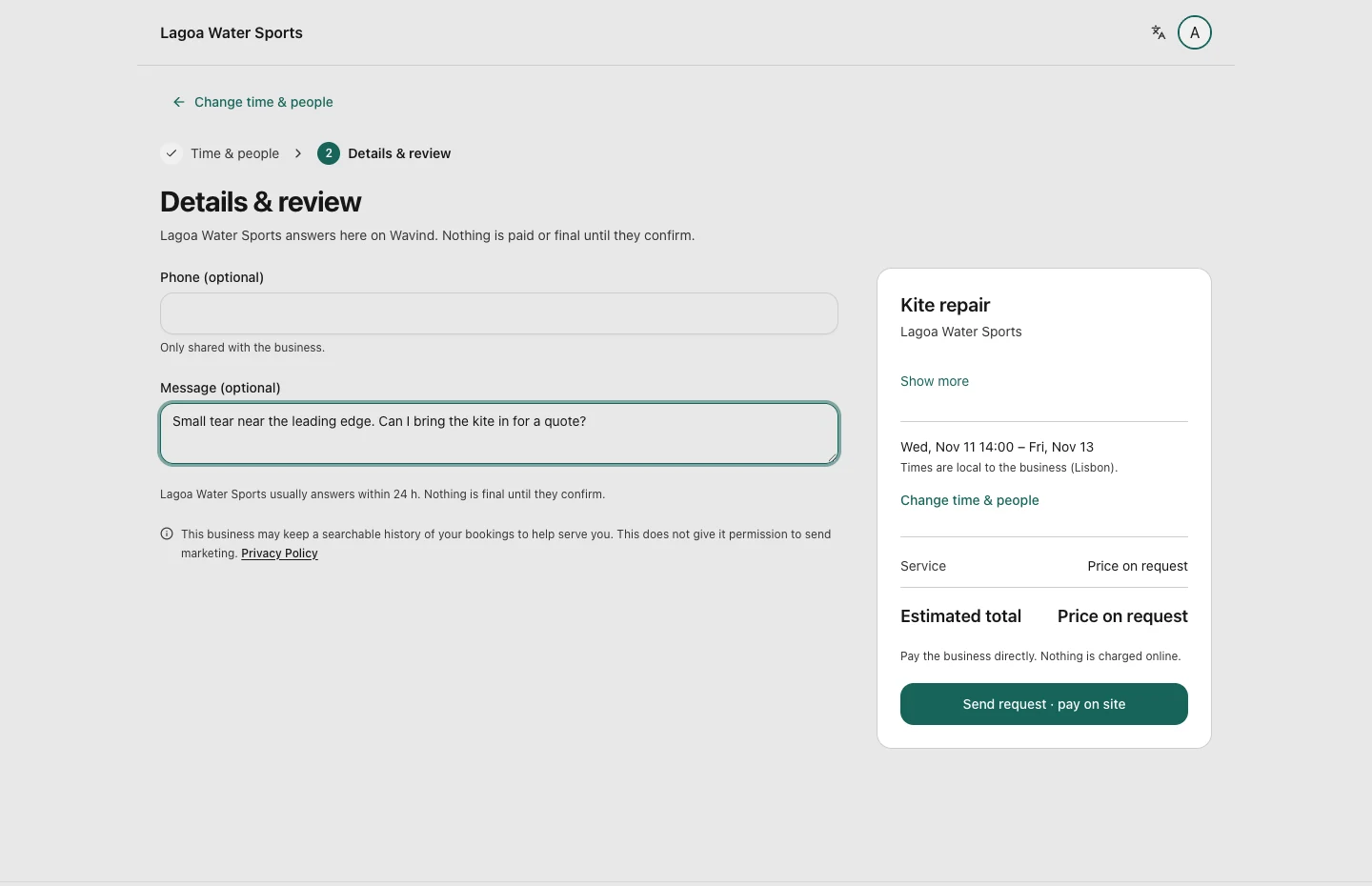
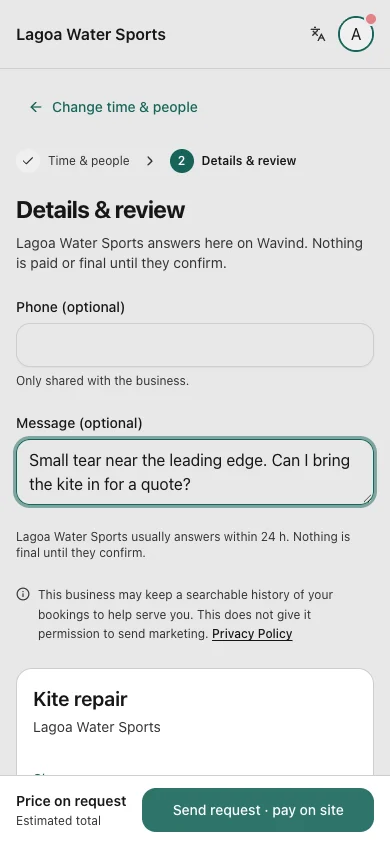
Review extras and payment. On the website, confirm your email inline if asked, then explicitly book; verification alone never sends a booking.

On this screen

Review extras and payment. On the website, confirm your email inline if asked, then explicitly book; verification alone never sends a booking.

What happens next

This lesson confirms instantly when booked. A service labelled Request still needs the business’s reply.

Step 4 of 5 · The rider’s side

Keep the details close

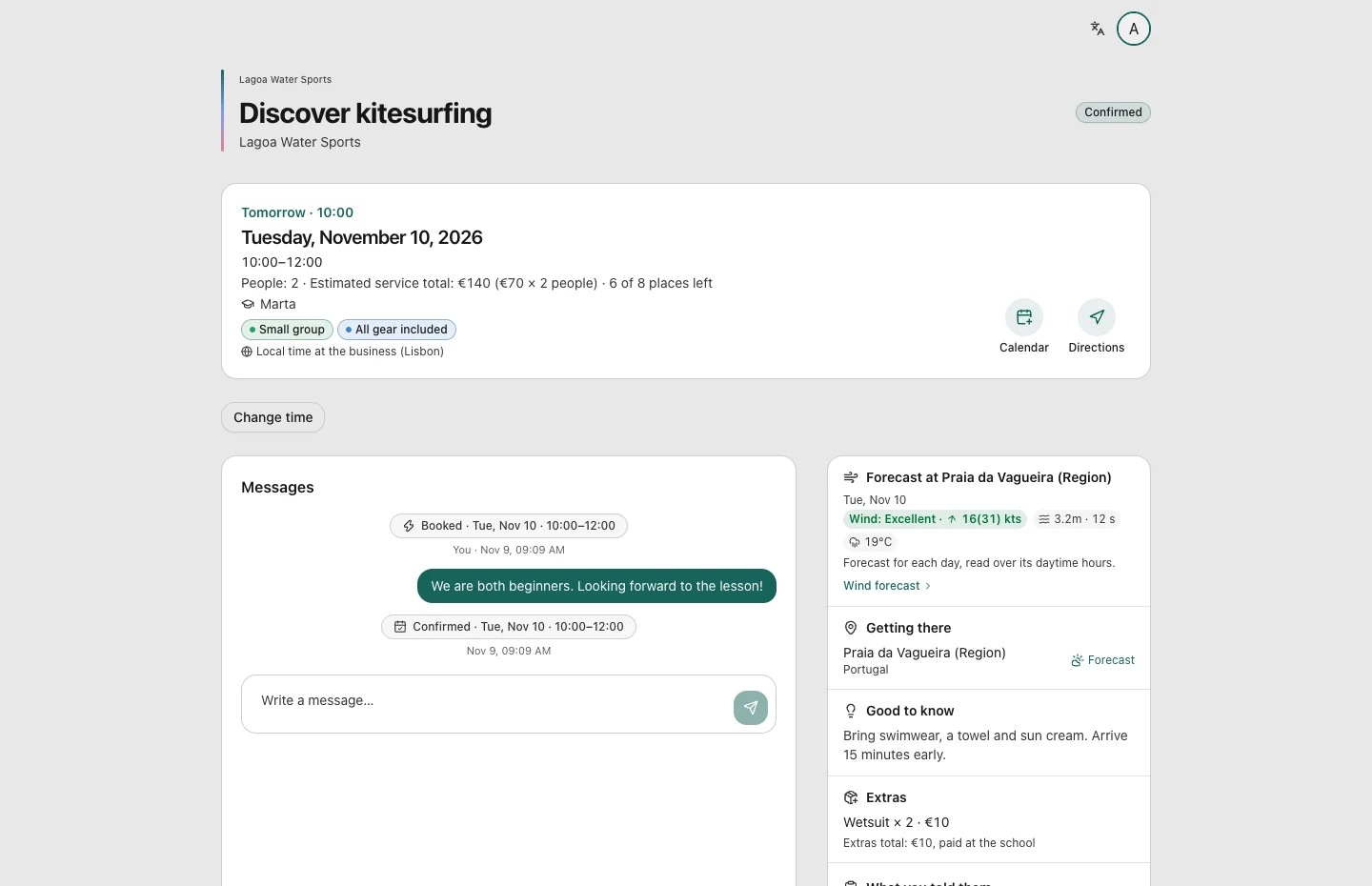
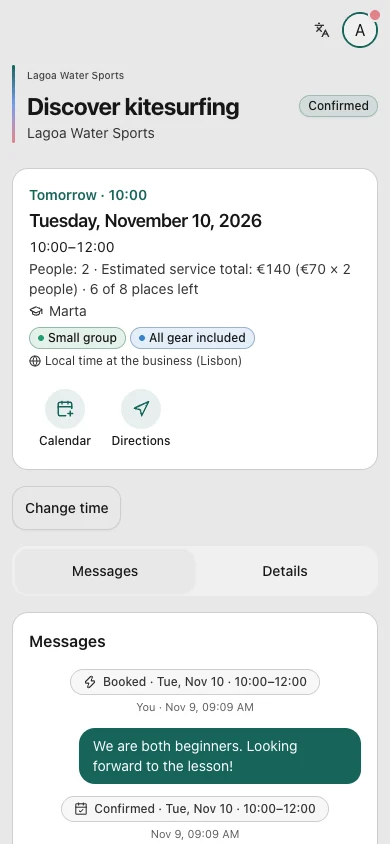
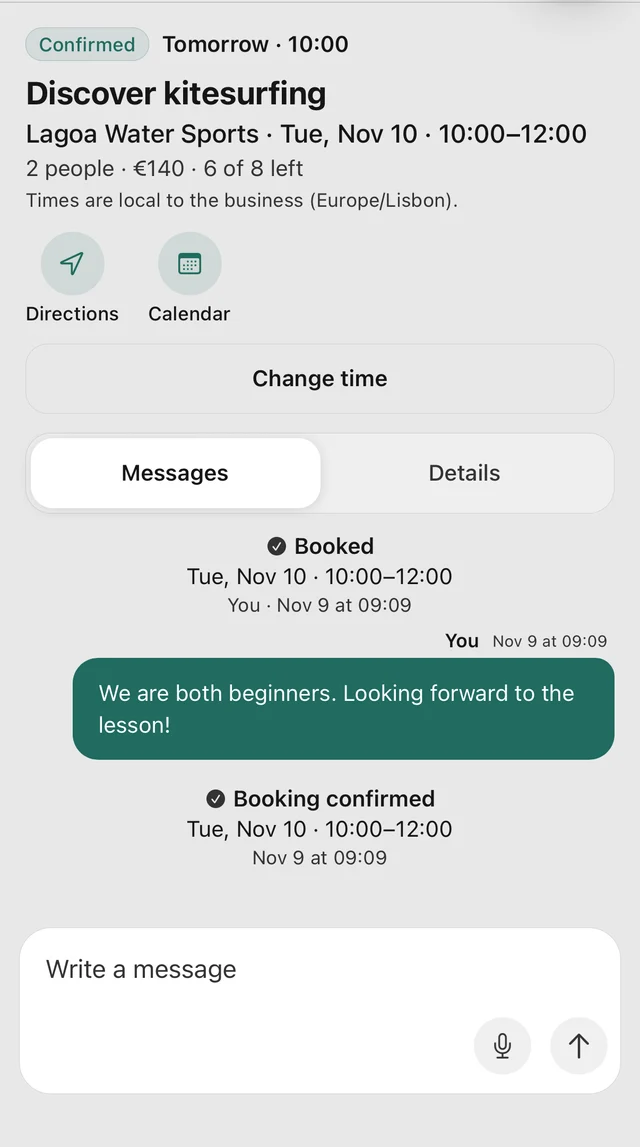
The rider’s booking holds the confirmed time, meeting point, forecast and messages. They pay the business directly, as shown when booking.

On this screen

Check the confirmed date and time. Use the meeting point, directions, messages or calendar action when you need them.

What happens next

A clear place to return to before the session.

Step 5 of 5 · The rider’s side

Find every booking again

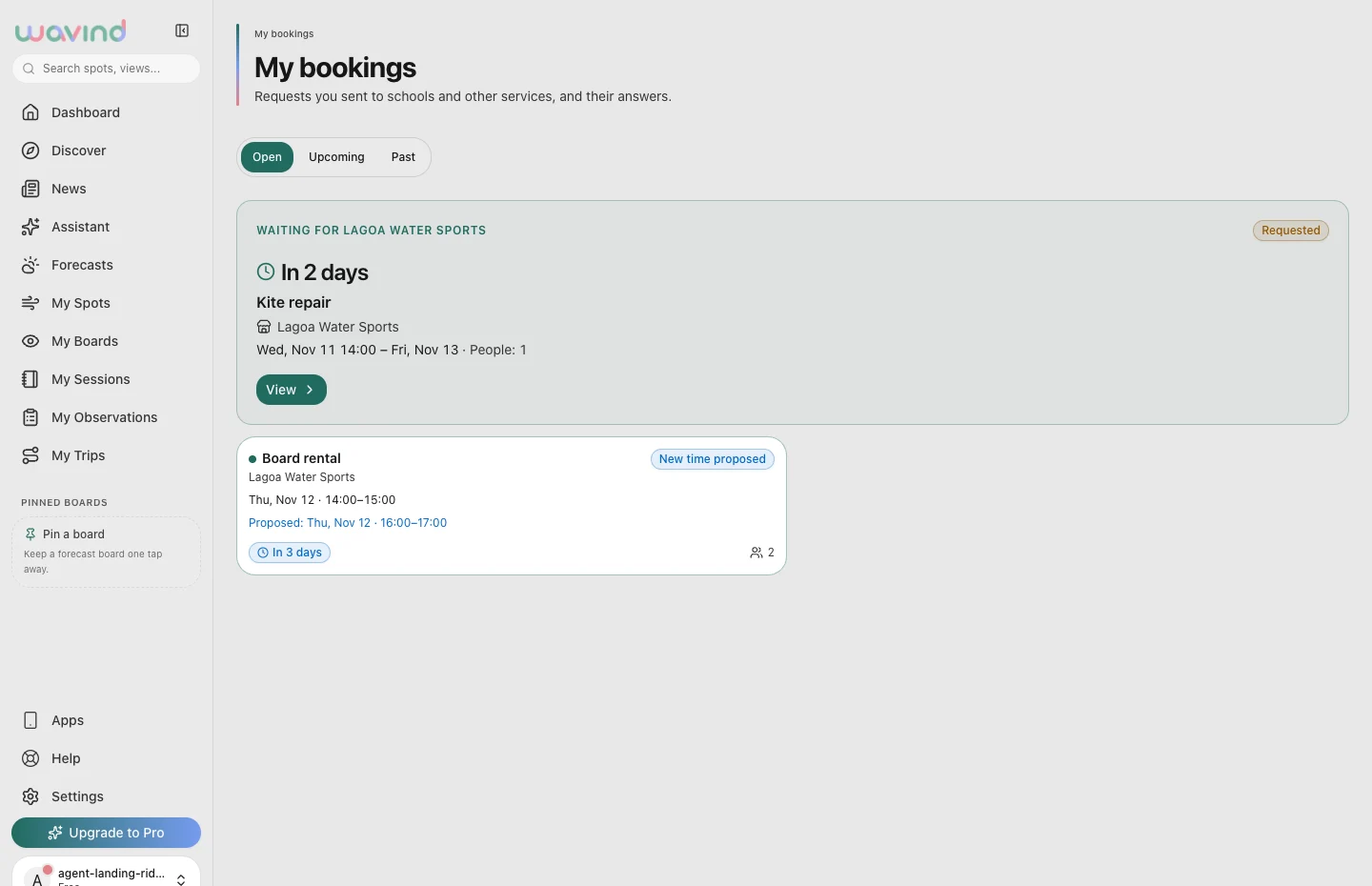
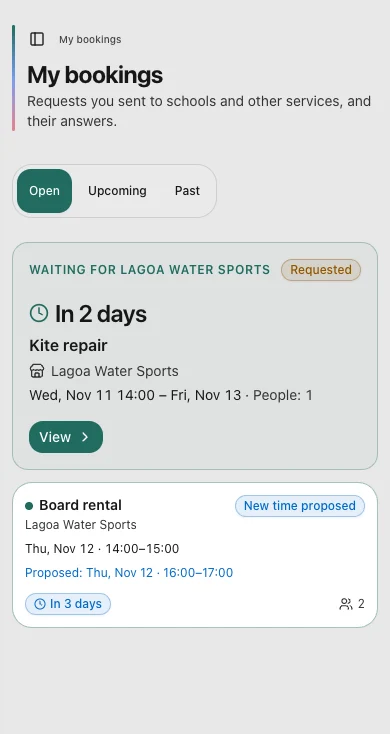
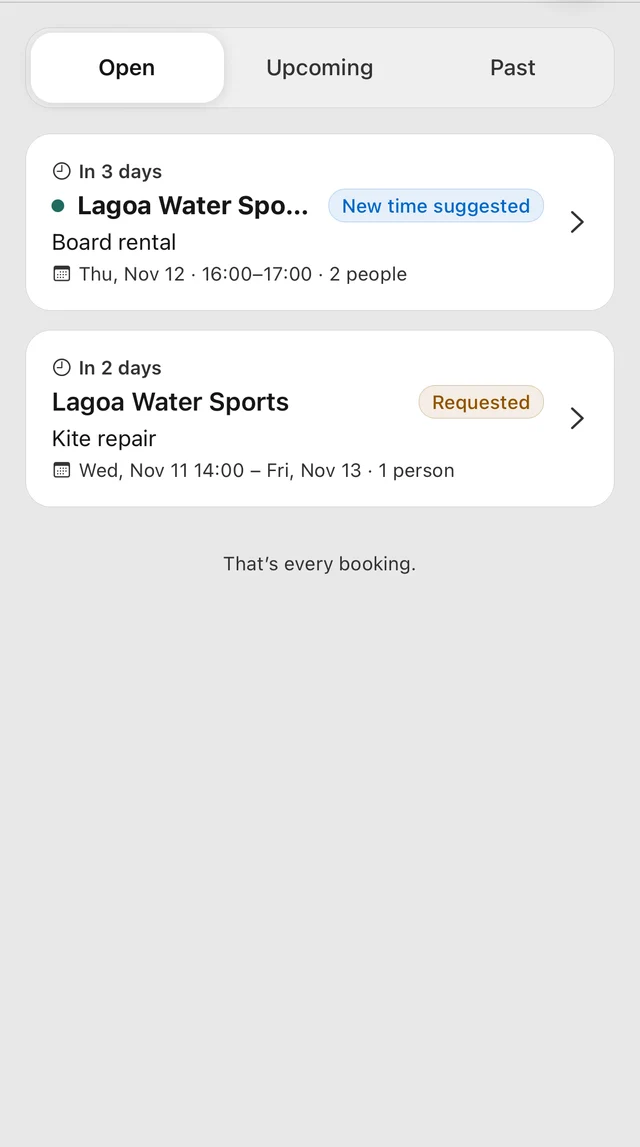
My bookings separates requests waiting for an answer, upcoming sessions and past bookings. If confirmed bookings overlap, Upcoming reminds you to check their times.

On this screen

Open a booking to check its latest status and conversation. Use Upcoming for confirmed sessions and Open for requests still being discussed.

What happens next

You can follow the business’s answer without losing track of other bookings.

Running a business

You run the school. Prepare your services, answer requests, plan the week and get ready for the people coming today.

Step 1 of 5 · The business’s side

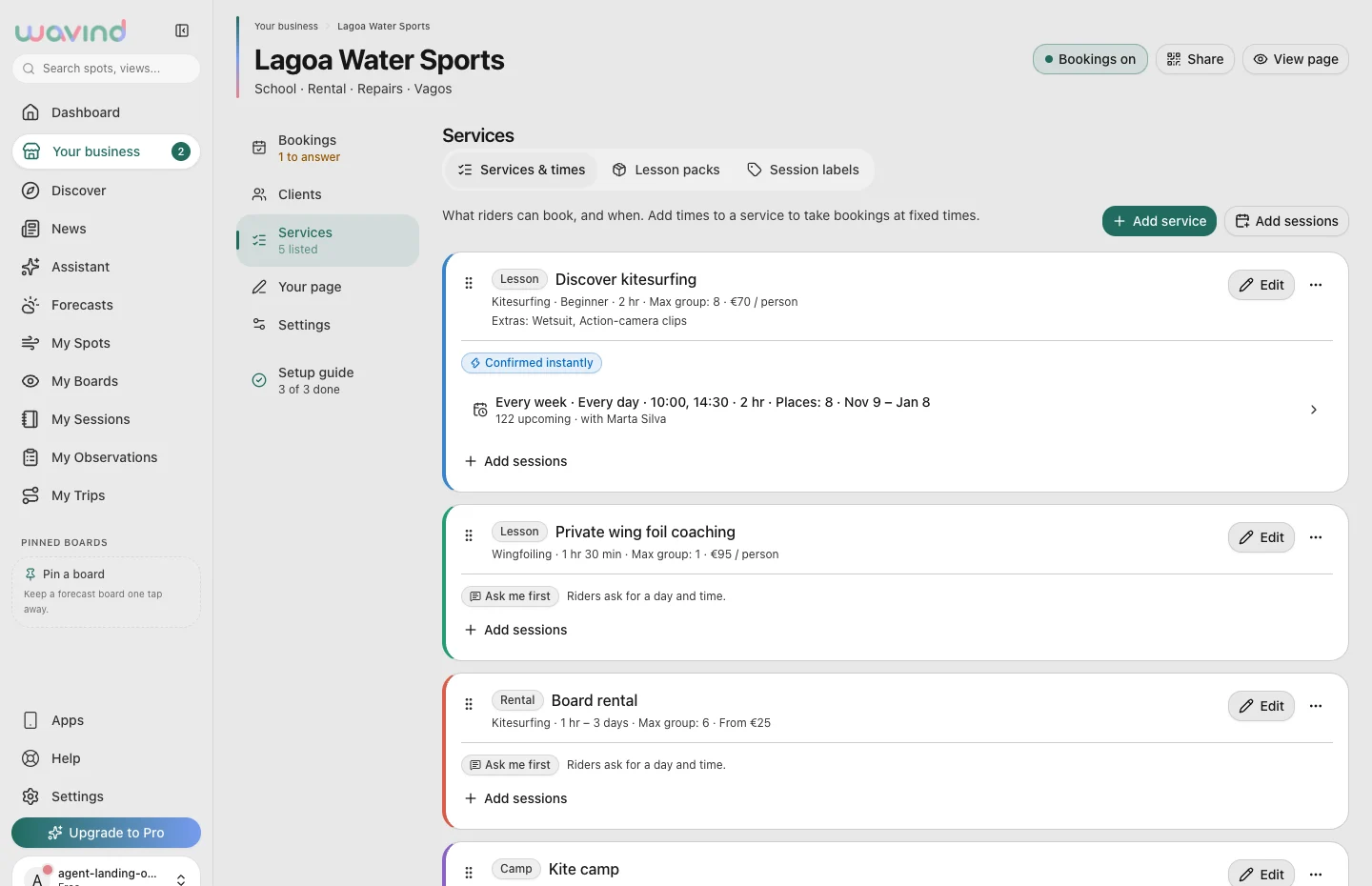
Prepare what riders can book

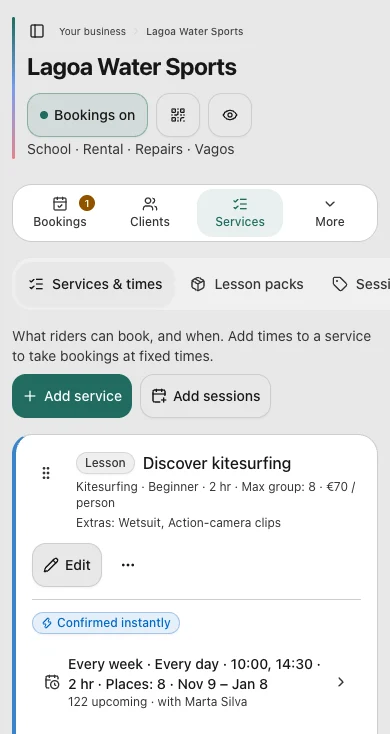
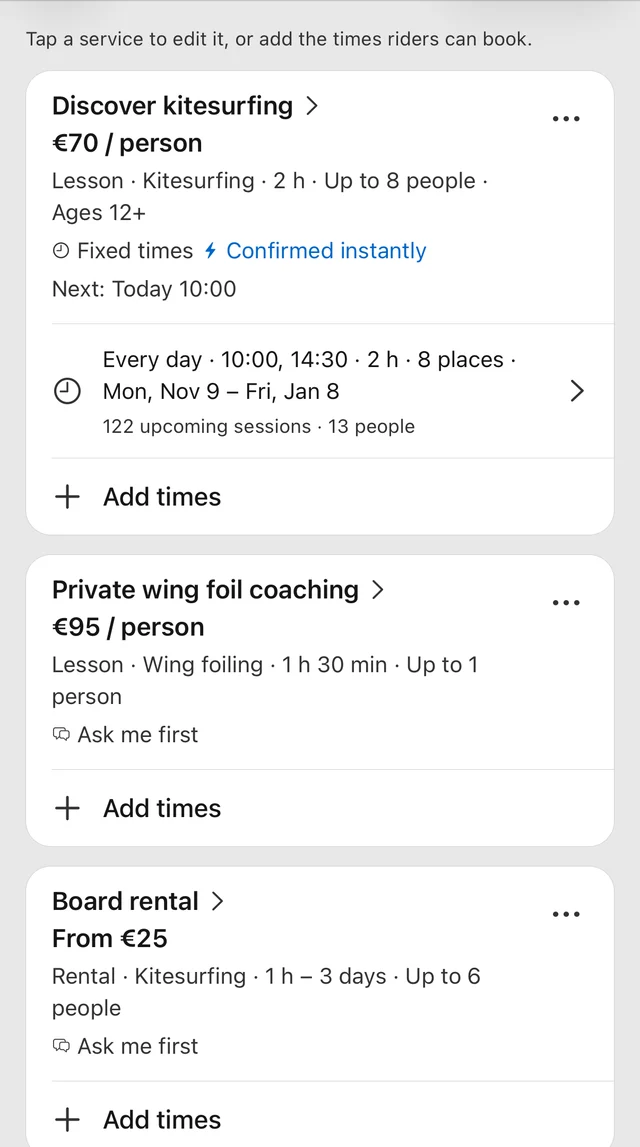
Services & times is where you define your lessons, rentals and other offers. Each service has its own price, duration, capacity and booking approach.

On this screen

Open a service to edit it and add the dates you offer. Use recurring times, a dated plan or an individual session to match your schedule.

What happens next

Riders see the services and available dates you have prepared.

Step 2 of 5 · The business’s side

Answer the bookings that need you

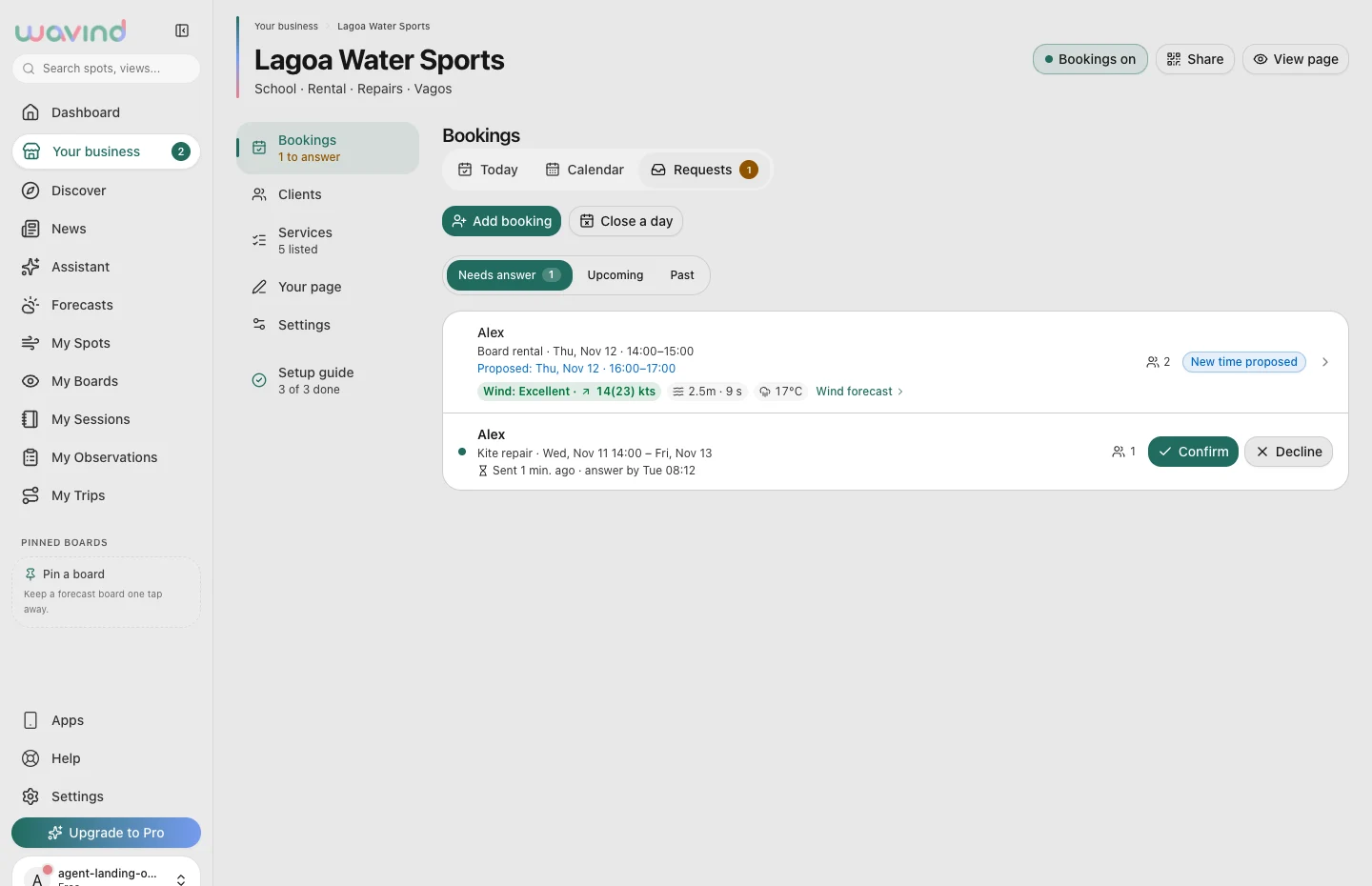
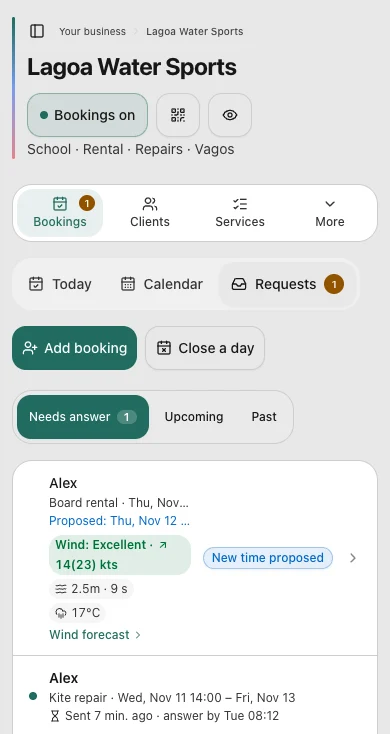
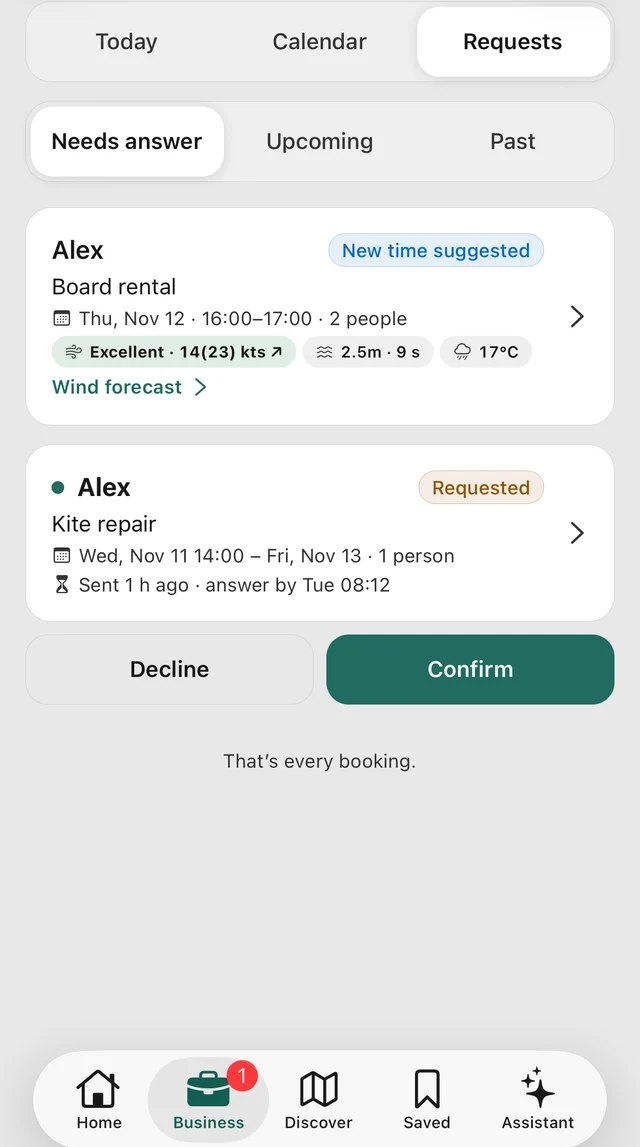
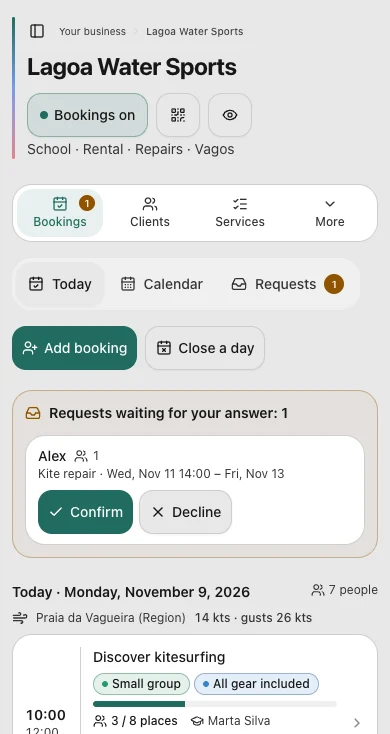
Instant bookings confirm available places immediately. Requests work differently: they wait for you to confirm, decline or suggest another time.

On this screen

Open Needs answer to review the service, requested date, rider and forecast. Reply before the stated deadline; use the conversation to agree details.

What happens next

The rider can see your answer and any proposed change in their booking.

Step 3 of 5 · The business’s side

Plan the week in one place

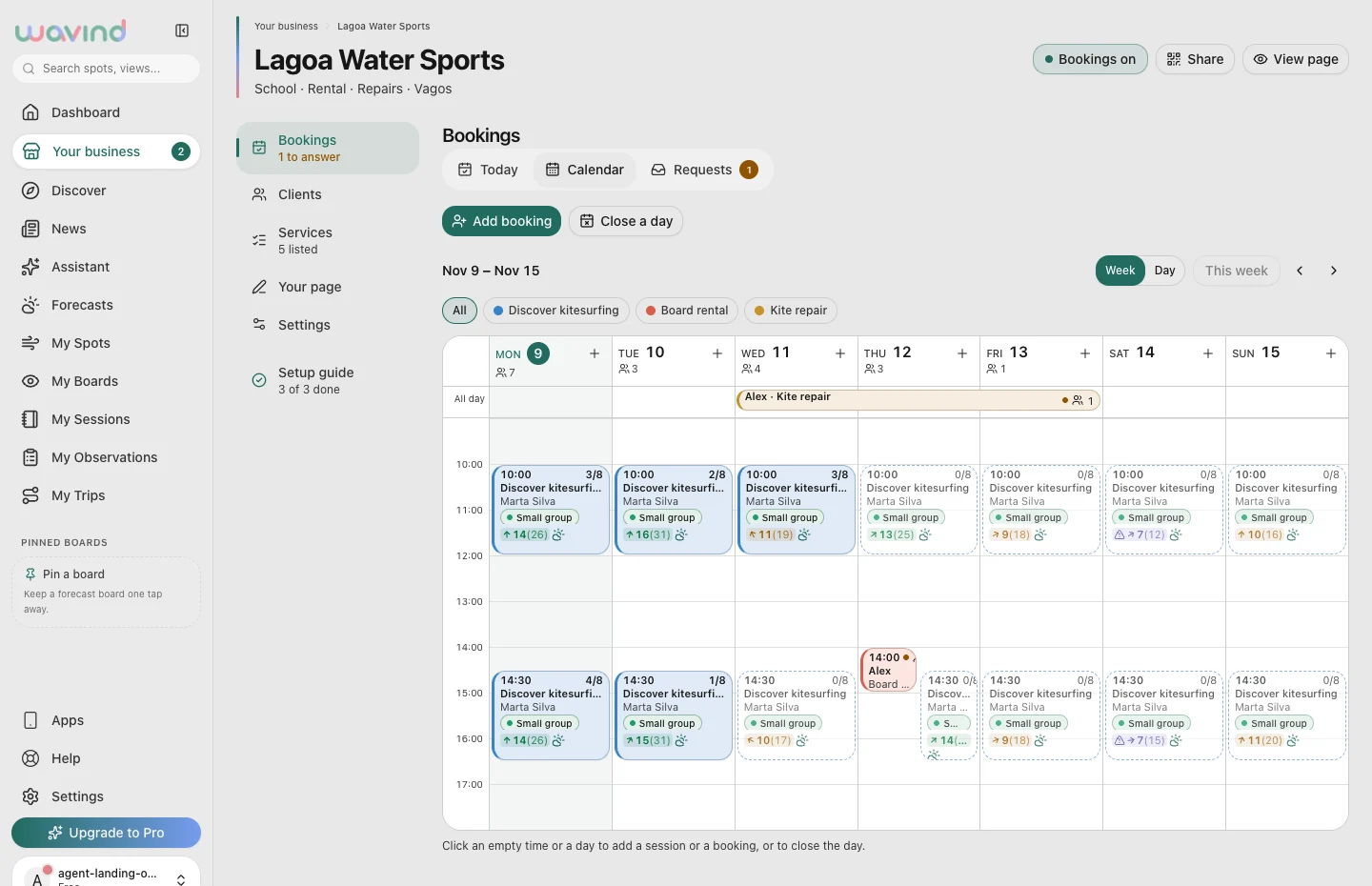
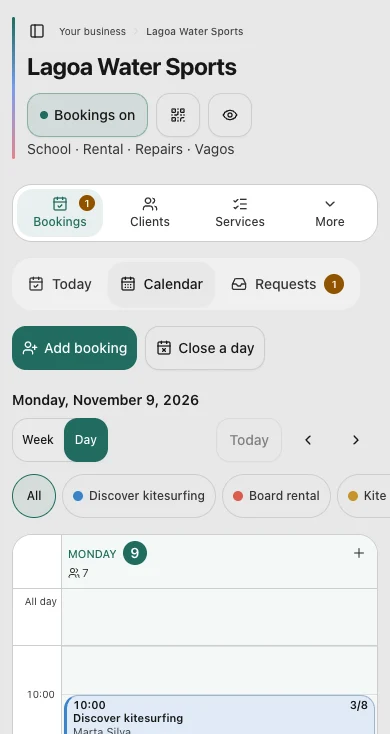
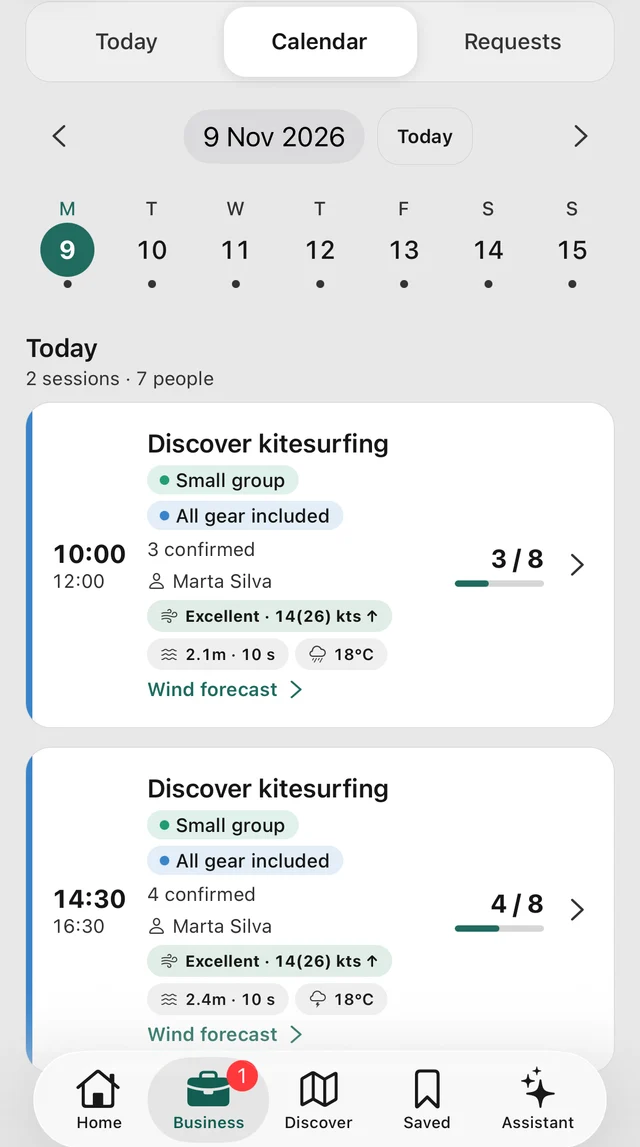
The calendar brings your sessions and bookings together by date. It helps you look beyond today and see where each activity fits.

On this screen

Move to the day you want to check and open a session or booking for its details. Prepare changes before the team or riders arrive.

What happens next

You keep an overview of the schedule while managing individual bookings.

Step 4 of 5 · The business’s side

Get ready for today’s riders

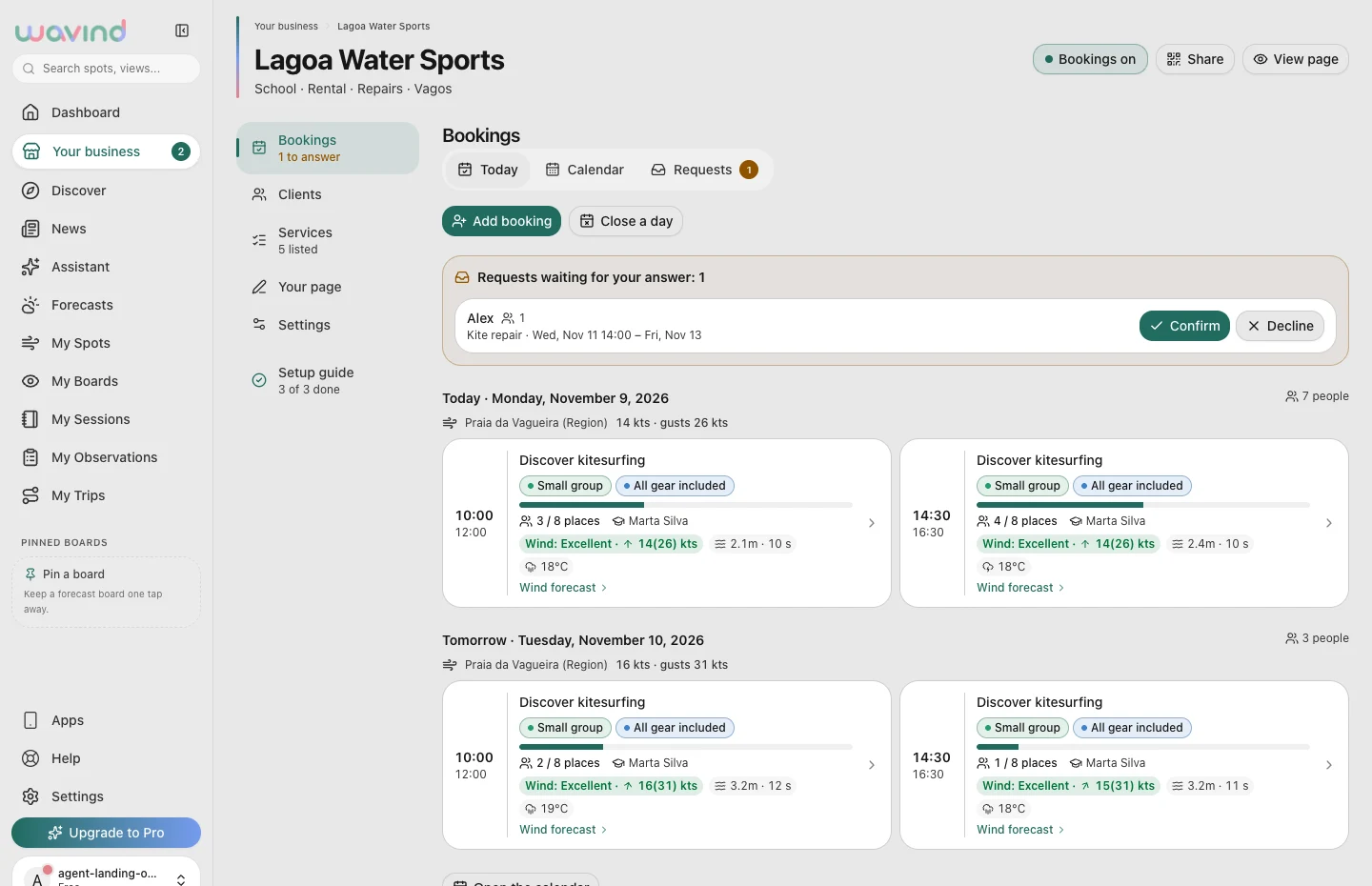
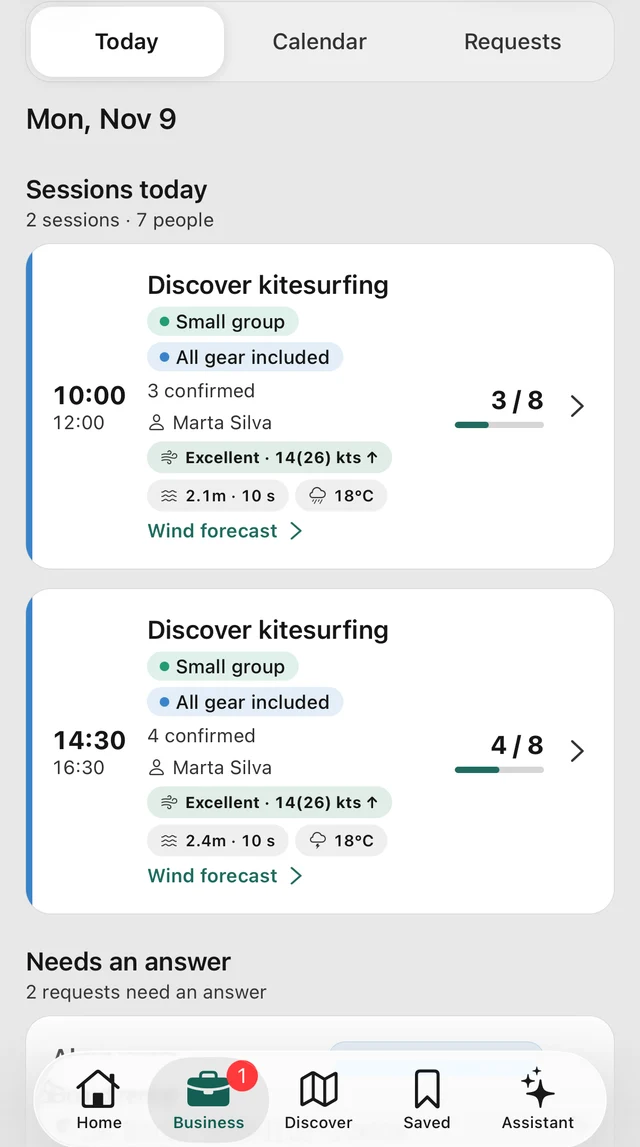
Today brings the day’s sessions, confirmed numbers and outstanding requests together. This prepared example school day has both group lessons and private requests.

On this screen

Check the times and group sizes, then open a session for its roster. Handle any requests that still need an answer.

What happens next

Your team knows who is coming and what still needs attention.

Step 5 of 5 · The business’s side

Recognise returning clients

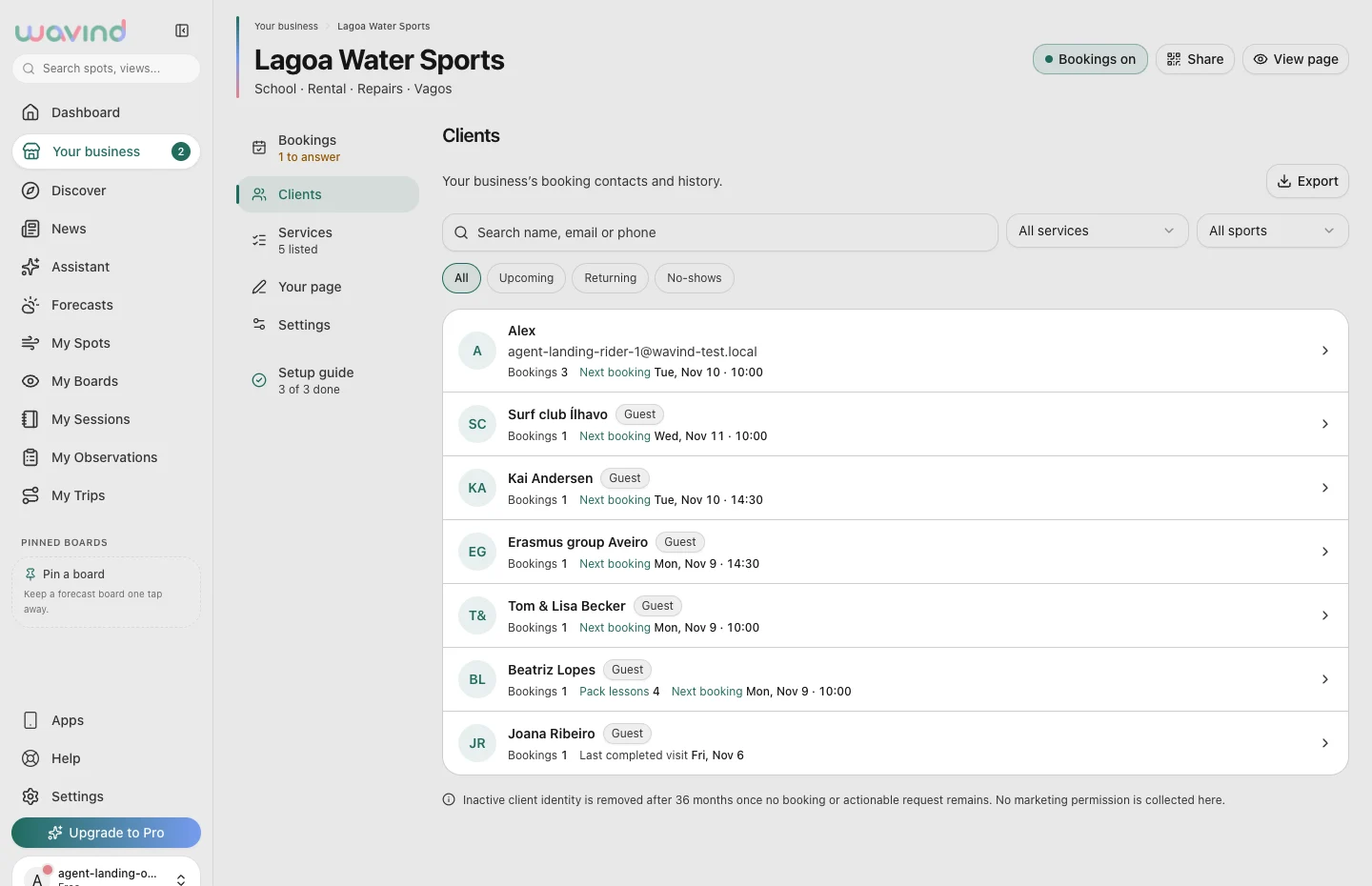
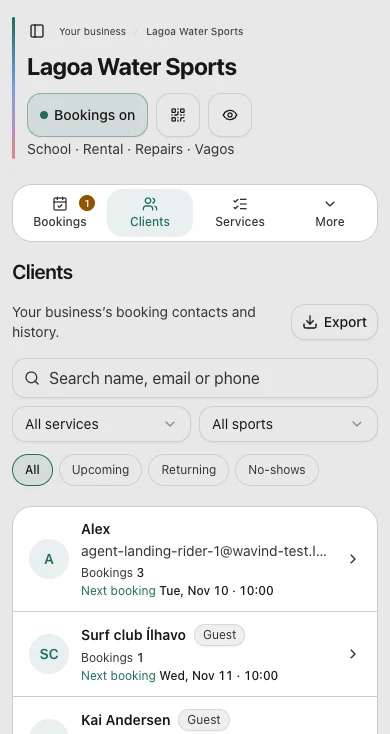
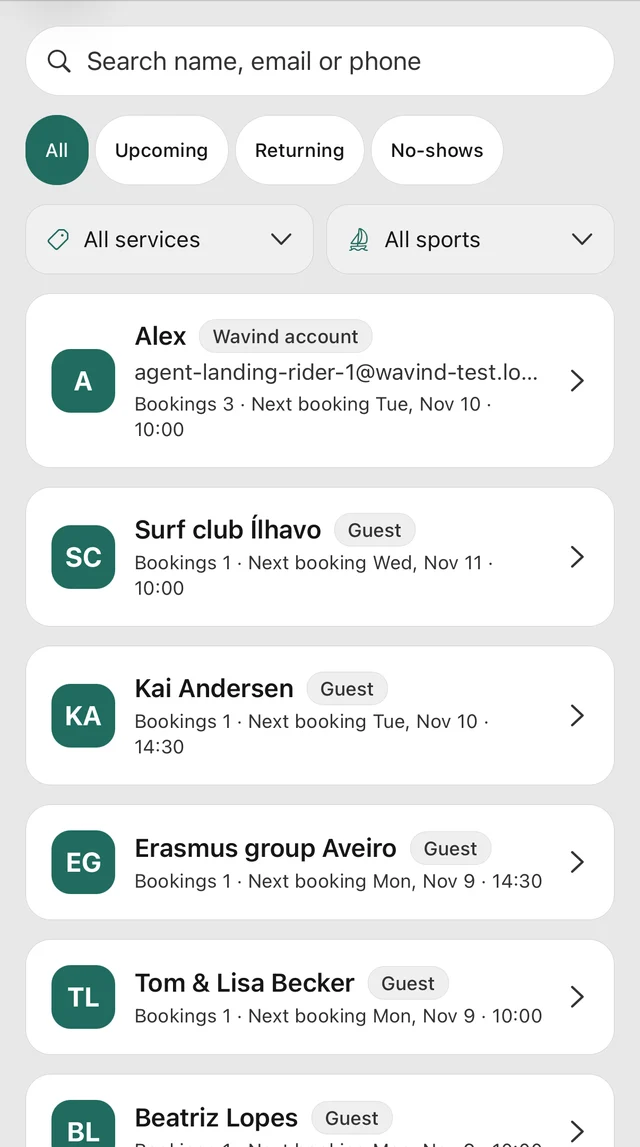
Clients brings booking contacts and history together for your business. Guest bookings and returning riders can both appear here.

On this screen

Find a client by name, email or phone and open their record. Check their booking history and any lesson pack before arranging the next session.

What happens next

You have context for the next visit without searching old conversations.

A screenshot walkthrough with fictional businesses and example dates, prices and people. Screens are in English. App captures are from iPhone; browser and app details are cropped. No booking or payment is made here.

Your business has its own rhythm.

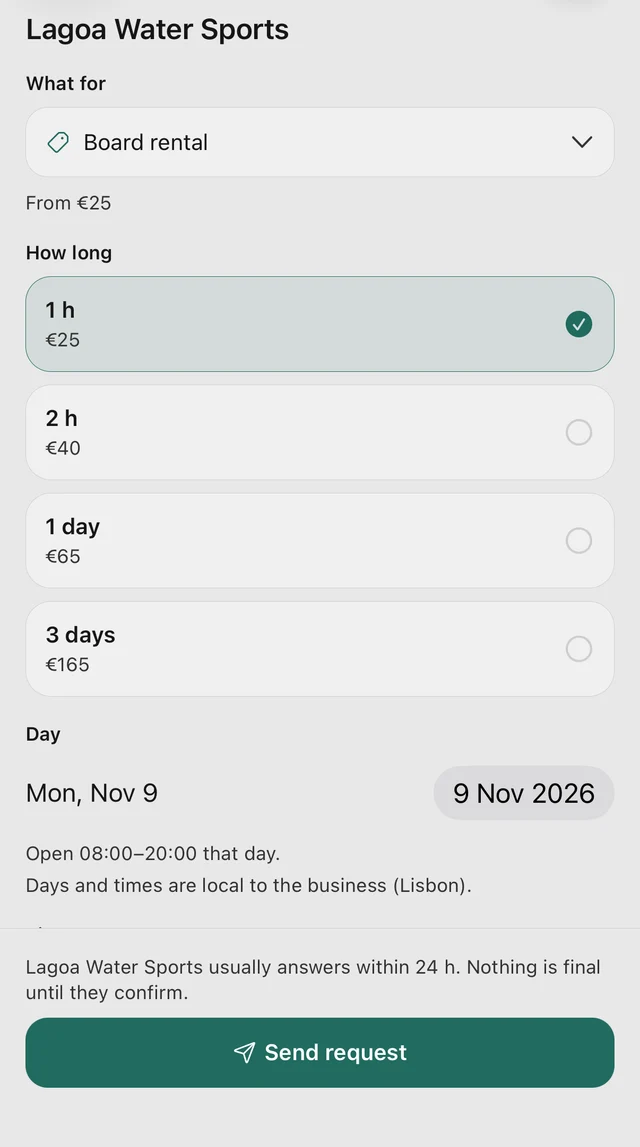
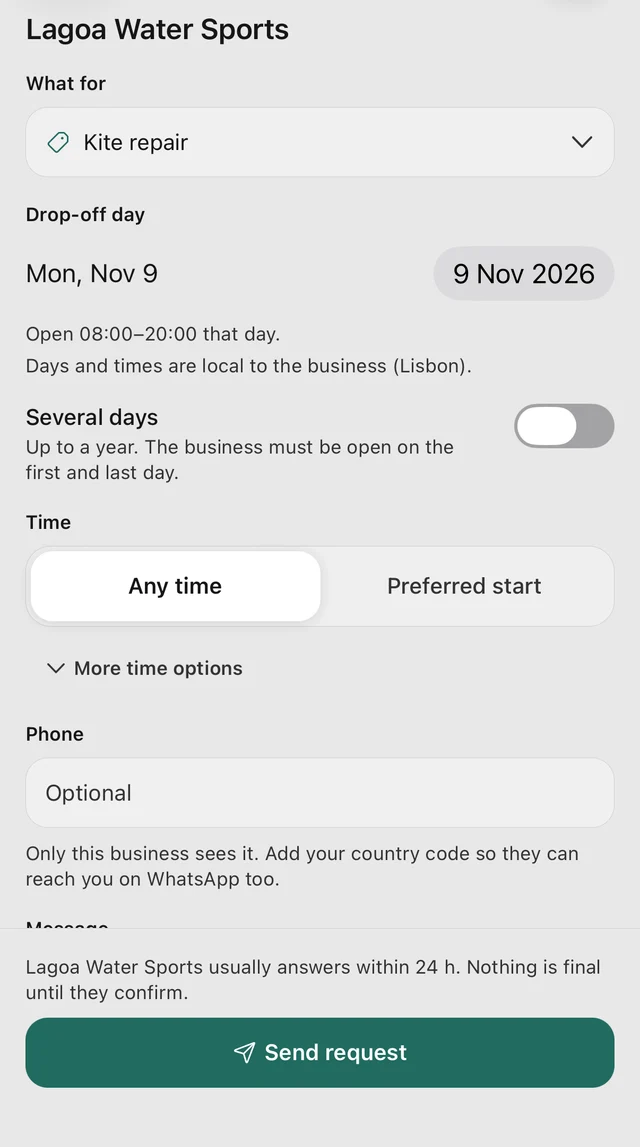
Fixed lessons are only the beginning. Take a closer look at three more ways to book, using fictional example businesses.

Make the next booking yours.

Create your business page and give customers a clear way to book. Or explore the schools and services already on Wavind.
Use the arrows to browse. Close to return to the walkthrough.